
How Big of a File Can You Email? 2026 Limits Explained
Most email providers let you send messages in the 20 MB to 25 MB range, but a practical safe limit is often under 10 MB once the whole message is counted. If you’re using Gmail or Outlook, that gap is why a file that looks small enough on your desktop can still fail after you hit send.
That’s the frustrating moment a lot of people are dealing with right now. You attach a proposal, a slide deck, or a contract packet, the message leaves your outbox, and then the bounce comes back with some version of “message too large.” It feels random until you understand that email limits aren’t just about the file itself. They’re about everything wrapped around it, and that changes how professionals should send files in Gmail and Outlook.
If you’re asking how big of a file can you email, the better question is usually this: when should you stop attaching and start sharing a link instead?
Table of Contents
- The File Attachment Bounceback We All Know
- Why Email Attachment Limits Actually Exist
- A Guide to Email Provider Size Limits
- The Modern Solution Send Cloud Storage Links
- Other Options When You Must Send a File
- Reclaim Your Time from File Transfer Headaches
The File Attachment Bounceback We All Know
You finish the email. Subject line is clear. Notes are written. The client deck is attached. You click send and move on to the next task.
Then the reply comes back from the mail system instead of the recipient.
Often, this happens with the exact files that feel routine: a polished PowerPoint, a PDF report with graphics, a spreadsheet with tabs and embedded screenshots, or a contract packet with a few scanned pages. Someone says, “But Gmail allows 25 MB,” and someone else says, “Outlook accepted it yesterday.” Both can sound true, and both can still lead to a failed send.
That’s why file size problems aren’t just technical problems. They’re workflow problems. If your team treats the public limit as the practical limit, people will keep wasting time retrying, zipping, splitting, and asking whether the recipient’s system is broken.
Most attachment failures aren’t caused by one huge file. They’re caused by normal files sent too close to the edge.
There’s also a second layer of confusion. A message might leave one inbox but never arrive cleanly in another system. That’s especially common when a message crosses from a personal platform into a corporate environment with tighter controls. If you’ve ever had a message seem fine on your side but vanish or stall on someone else’s device, the troubleshooting often starts in the wrong place. Problems that look like syncing or inbox issues can begin with message handling itself, which is why articles on emails not coming through on iPhone sometimes overlap with attachment failures more than people expect.
The right answer isn’t memorizing a single number. It’s knowing where the risk starts.
Why Email Attachment Limits Actually Exist
Email still carries the history of being designed for text. Attachments were added onto that world, not built as the center of it.
Email was built for messages, not file delivery
When you attach a file, the mail system usually can’t send that file in its raw form. It has to convert it into a format that email infrastructure can transport. One of the big reasons limits feel stricter than they should is Base64 encoding, which increases attachment size by roughly 33% to 40% during transit, as explained in SMTP2GO’s guidance on email file sizes.
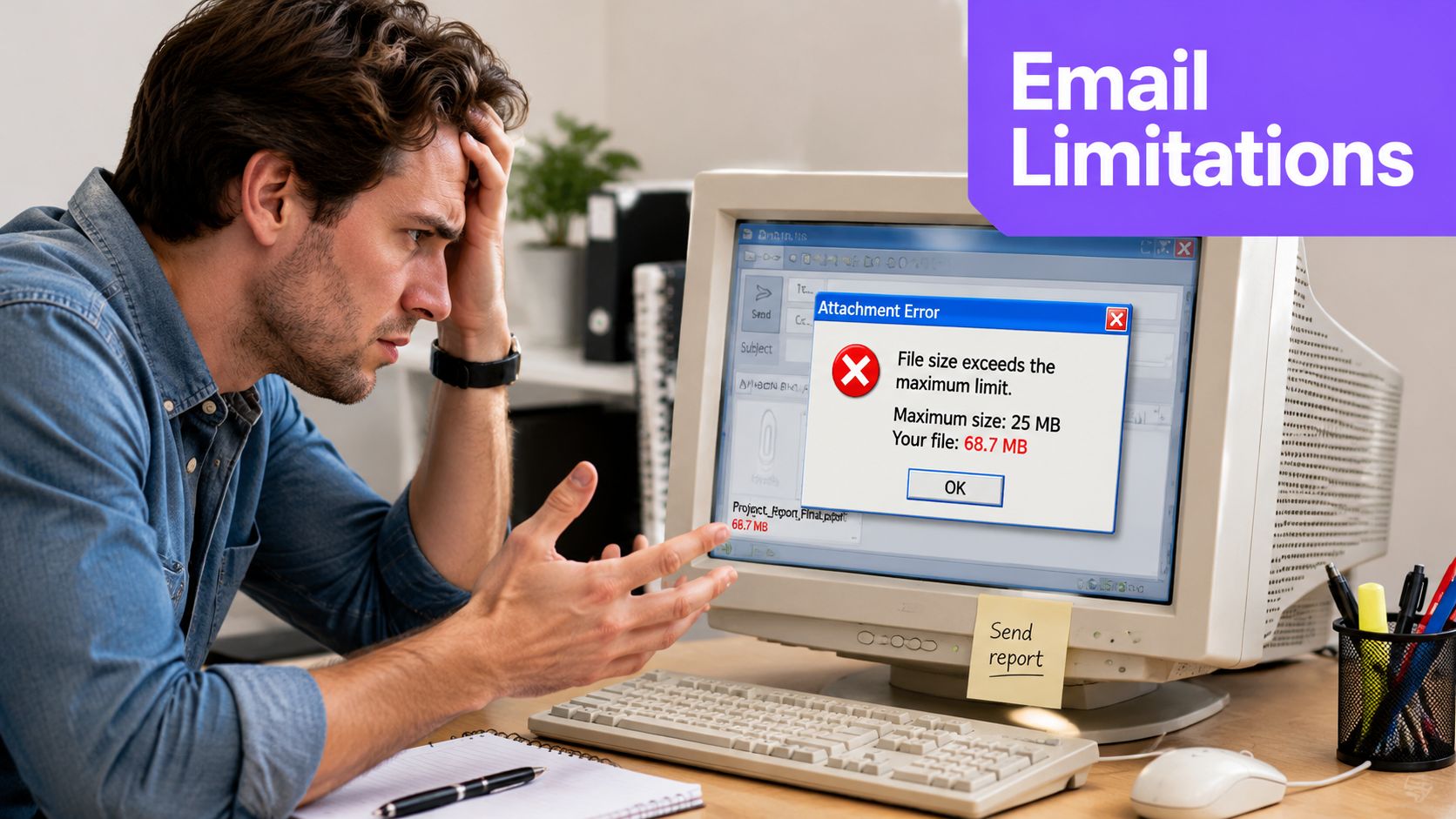
A simple way to think about it is packing a shipment. The file is the item you want to send. Email encoding is the wrapping, padding, labels, and box. The item didn’t change, but the package got bigger.
That’s why a file that looks comfortably below a provider limit can still trigger a rejection. The transport version is larger than the file you see in Finder or File Explorer.
What counts toward the limit
Another mistake people make is thinking the cap applies only to the attachment. In practice, the limit often applies to the entire message.
That means all of this can count against you:
- Email body text that seemed harmless
- Signatures with logos, banners, and legal footers
- Headers added in transit
- Inline images pasted into the message
- Encoded attachment overhead created before delivery
Practical rule: The closer your attachment gets to the provider’s headline limit, the more likely the whole message is to fail.
This is why “how big of a file can you email” doesn’t have one neat answer in day-to-day work. The message is a bundle, not a file bucket. If someone on your team uses a long HTML signature with two logos and a confidentiality footer, they have less usable room than someone sending plain text.
Once you understand that, the low drama approach becomes obvious. Leave margin. Don’t aim for the published maximum. Treat email as a communication tool first, not a file transfer system.
A Guide to Email Provider Size Limits
If you want the short version, most professionals using Gmail or Outlook are operating in a published world of 20 MB to 25 MB, not a world where “any file under 25 MB is fine.”
What Gmail and Outlook users should remember
Microsoft says internet accounts such as Outlook.com or Gmail are limited to 20 MB, while Exchange accounts are 10 MB by default, according to Microsoft’s Outlook attachment guidance. Gmail is commonly documented at 25 MB for attachments and total message size, but practical deliverability guidance still points to keeping messages under 10 MB if you want the best chance of smooth delivery across systems, as also reflected in Microsoft-linked guidance in that same reference.
The numbers matter, but context matters more. Internal systems can be configured differently from external sending rules. Some organizations allow larger messages inside their own environment while enforcing a lower ceiling for mail that leaves the company.
Email Provider Attachment & Message Size Limits (2026)
| Provider | Stated Limit (per email/message) | Notes |
|---|---|---|
| Gmail | 25 MB | Commonly documented for attachments and total message size in practical usage. Published limit still shouldn’t be treated as a comfort zone for cross-system sending. |
| Outlook.com and similar internet accounts | 20 MB | Microsoft states 20 MB for internet accounts such as Outlook.com or Gmail. |
| Microsoft Exchange default accounts | 10 MB | Microsoft notes Exchange defaults can be 10 MB, which catches many corporate senders off guard. |
| Microsoft 365 or Google Workspace internal policies | Varies | Organizations may set internal policies differently. Guidance referenced in earlier discussion notes examples such as allowing up to 50 MB internally while capping external mail at 25 MB. |
A few patterns show up repeatedly in real work:
- Personal to personal is more forgiving. Gmail to Gmail or Outlook.com to Outlook.com can feel easy until the recipient is outside that lane.
- Corporate recipients are less predictable. Their security, mail routing, and policy settings can be stricter than yours.
- Internal mail isn’t the same as external mail. A file accepted inside your company may still fail when sent to a client.
If your team wants a rule that reduces retries, use the published cap as a hard wall and the lower working threshold as the point where you change tactics.
The Modern Solution Send Cloud Storage Links
The cleanest answer to large-file email isn’t “find a way to force the attachment through.” It’s to stop treating the attachment as the default.
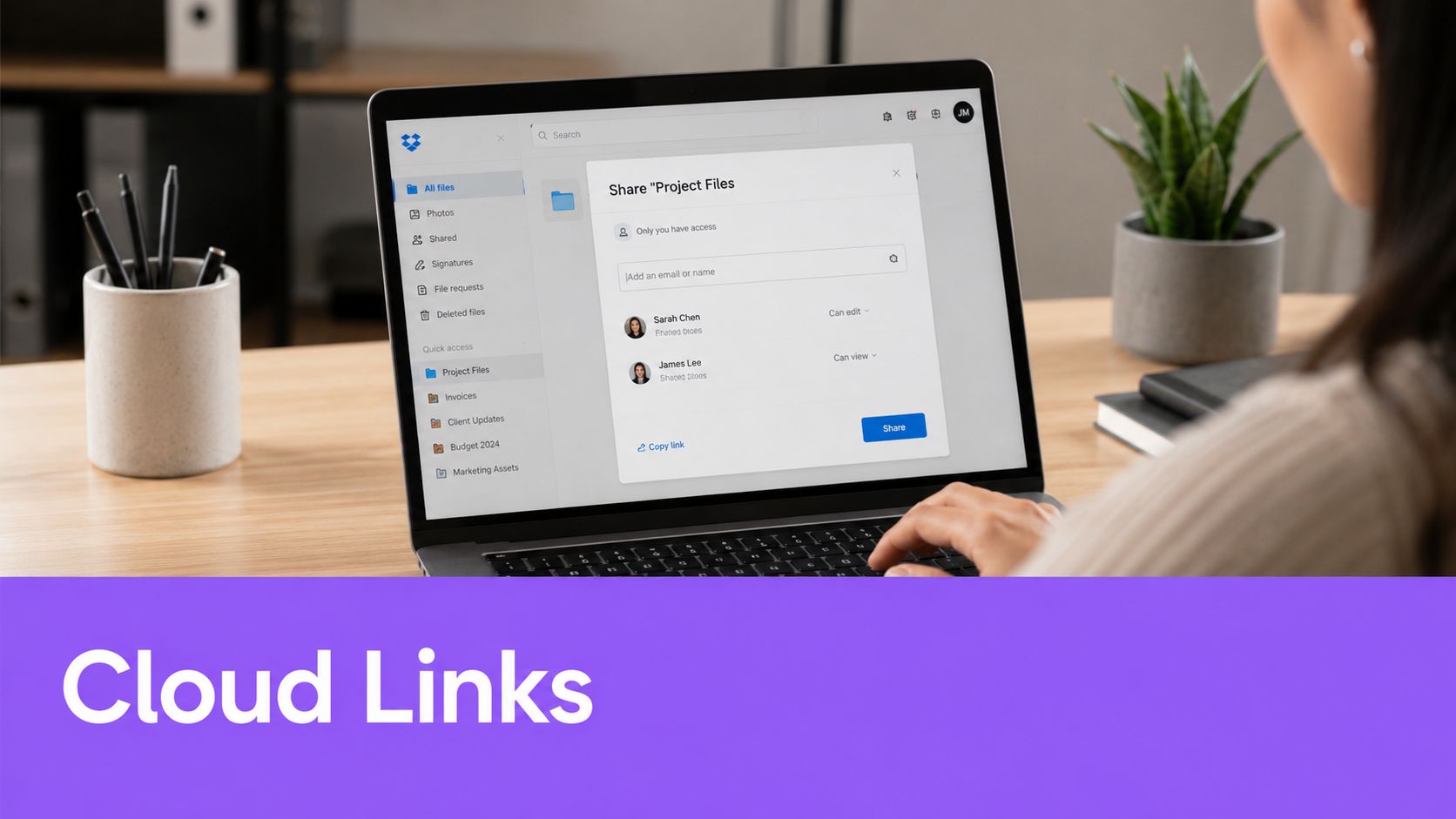
Guidance for Gmail users increasingly frames the decision as “should I email it” instead of “can I email it,” with the practical safe ceiling often under 10 MB total message size and larger files better shared by cloud link for reliability, especially with corporate recipients, as noted in Mailmeteor’s discussion of Gmail attachment limits.
Why link-first beats attachment-first
A shared link solves more than size.
First, it removes the send-limit game. You’re no longer hoping the encoded message squeezes through. Second, it gives you permission control. You can decide whether the recipient can view, comment, edit, or forward access. Third, it improves version control. If the deck changes after you send the email, you update the file once instead of emailing “final_v2” and then “final_v3_revised.”
Send the message with context. Send the file with a link. Those are two different jobs, and email only does one of them well.
This is also a cleaner habit for teams that care about backup and continuity. If your files live in managed cloud storage instead of scattered across inboxes, recovery and governance get easier. For small organizations tightening that side of operations, this overview of cloud backup solutions for small business from IT Cloud Global is a useful companion read.
How this works in Gmail and Outlook
Both major platforms already push users in this direction.
For Gmail, large attachments often trigger a Google Drive sharing flow instead of a traditional attachment send. The practical move is simple:
- Upload the file to Google Drive if Gmail doesn’t do it automatically.
- Set the right access level before sending.
- Keep the email short, with clear context on what the recipient should review.
For Outlook, the equivalent pattern is OneDrive. Outlook and Microsoft 365 often make it easier to share a OneDrive link than to brute-force a heavy attachment through.
Use this workflow when:
- You’re sending design files or decks that may be revised after the email goes out
- You need controlled access instead of a file that can be forwarded freely
- The recipient is on a corporate system and you don’t want the message blocked
- Several people need the same file and you want one source of truth
For professionals, this isn’t a workaround anymore. It’s the better default.
Other Options When You Must Send a File
Sometimes a portal won’t accept links. Sometimes procurement asks for a direct attachment. Sometimes the recipient just won’t click anything except a file in the email.
In those cases, you still have options. They just work unevenly.
When compression helps
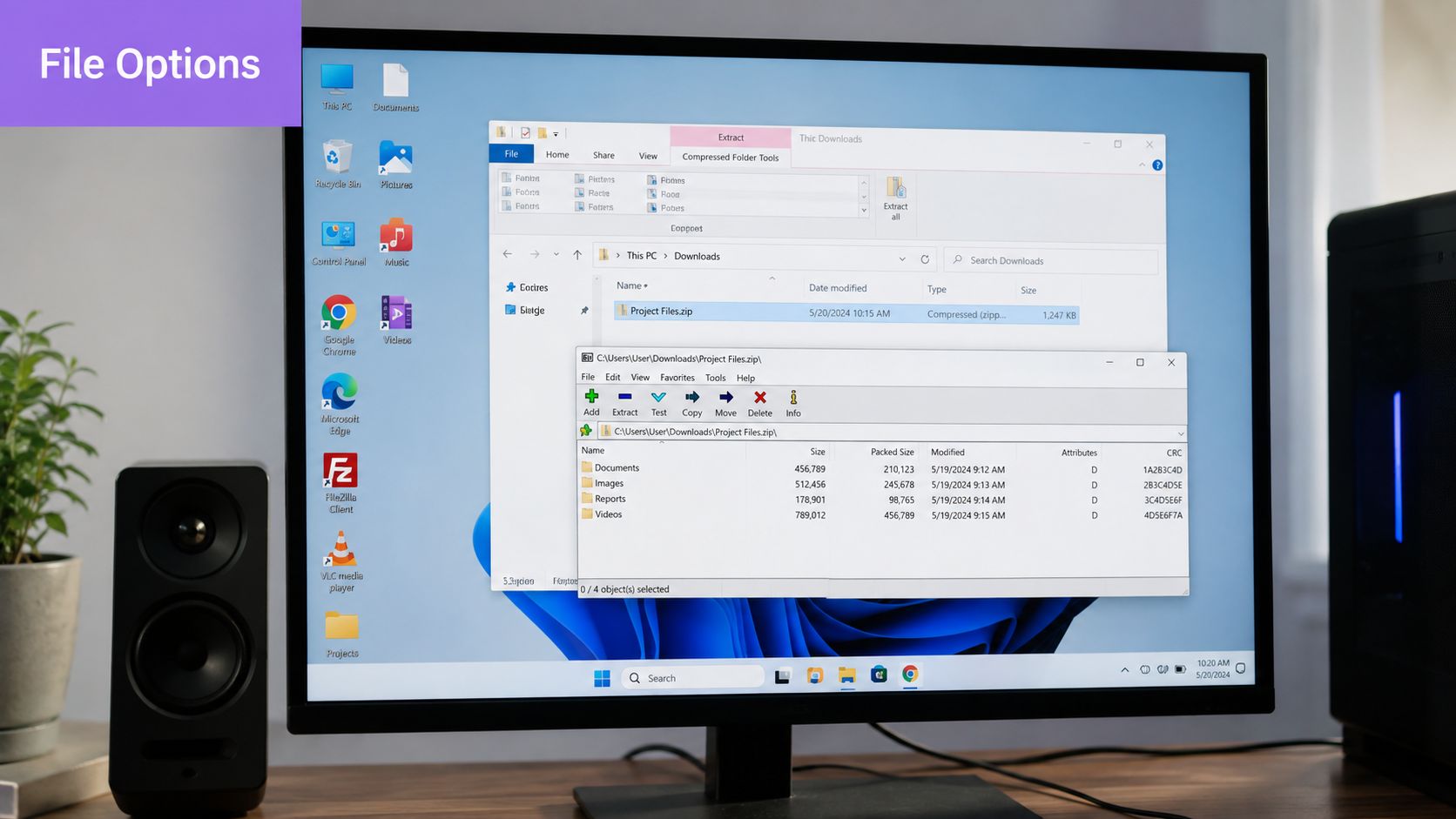
Zipping a file is useful when the content compresses well. Text-heavy folders, spreadsheets, CSV exports, and some document collections often shrink enough to matter.
It helps less with files that are already compressed, such as many image, video, and audio formats. A JPEG, MP4, or similar media file usually won’t get dramatically smaller just because you zipped it.
A practical checklist:
- Try zip first for documents. Office files, PDFs with moderate structure, and text exports are worth testing.
- Don’t expect miracles from media. Photos and videos often stay stubbornly large.
- Protect sensitive sends when needed. If you need an encrypted archive, this guide to creating a password-protected ZIP on macOS is a useful step-by-step reference.
When you need a fallback
If compression doesn’t get you there, file splitting is the old-school backup plan. Archive tools can break one large package into smaller parts that fit within strict mailbox limits.
That works, but it adds friction:
- The sender has to create and label multiple parts correctly.
- The recipient has to download everything and reassemble it.
- One missing piece can derail the whole handoff.
A more recipient-friendly option is a dedicated transfer service such as WeTransfer or Dropbox Transfer. These tools are useful when you need a simple one-off send and don’t want to manage ongoing shared-folder permissions. They’re often easier for non-technical recipients than split archives, and they avoid some of the confusion that comes with email attachments near the limit.
If you must attach, keep the package lean. Remove duplicate pages, flatten unnecessary graphics, and strip bloated signatures from the email itself before you send.
Reclaim Your Time from File Transfer Headaches
Attachment limits waste more time than many are willing to admit. Not because the rules are mysterious, but because people keep working right up against them.
The fix is straightforward. Stop treating the published maximum as your target. Use a lower working threshold for attachments, and switch to links before the message becomes fragile.
A simple working rule
For daily work in Gmail and Outlook, a reliable approach looks like this:
- Small files can go as attachments when the message stays comfortably light.
- Anything near the edge should be compressed only if compression will help.
- Larger or business-critical files should be shared by Drive, OneDrive, or a transfer link.
That approach cuts out the back-and-forth. No resends. No “did you get it?” follow-ups. No last-minute file surgery before a deadline.
Here’s the broader productivity point. Professionals shouldn’t spend attention on delivery mechanics when they should be focusing on the content of the message, the decision in front of the recipient, or the next client task. Email works best when it carries context, next steps, and a clear ask. File distribution is a separate workflow.
If your team is trying to reduce that kind of repetitive inbox friction more broadly, it also helps to understand where smart drafting and process design fit into the day-to-day reality of email. This guide on what email automation is is a good starting point.
The practical answer to how big of a file can you email is simple enough. The better professional habit is even simpler: don’t attach large files unless you have a strong reason to.
If you want help handling the email side of that workflow faster, Ellie can draft replies directly inside Gmail and Outlook, so you spend less time managing repetitive inbox work and more time on the files, decisions, and conversations that matter.